uploads
 TopstepX
How to Upload TopStepX Trades
This guide explains how to export your trade history from TopStepX and import it into TradeRonin.
January 15, 2026
0 views
Step 1: Export from TopStepX
- Log in to your TopStepX account
- Navigate to the "Trades" tab at the bottom of the page
⚠️ Important: Use the Trades tab, NOT the Orders tab
- Click "Export" at the bottom right corner
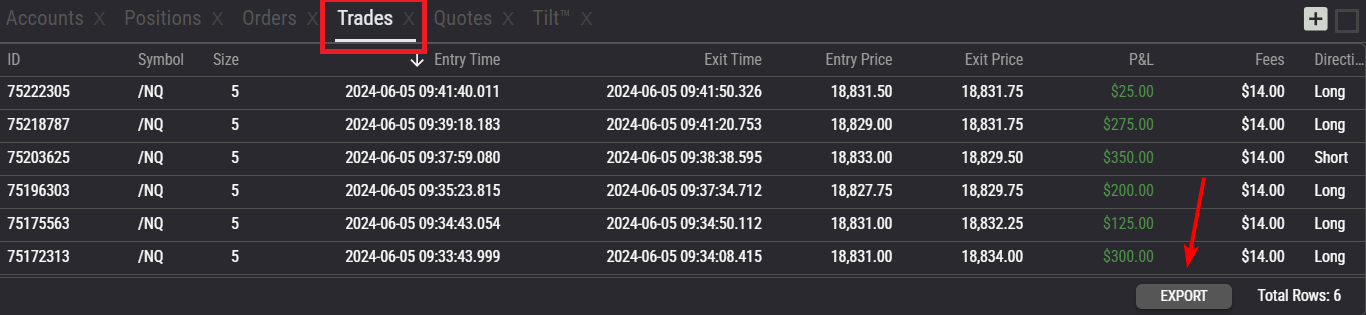
- Select the date range of trades you want to export
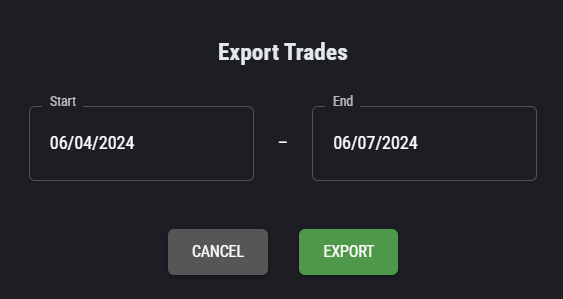
- Click "Export" to download the CSV file
Step 2: Import into TradeRonin
If You Don't Have a TopStepX Account Yet
- Go to Settings → Accounts
- Click "+ Add Account"
- Select "Broker (CSV Upload)"
- Choose TopStepX from the broker list
- Select your file & Complete account setup
If You Already Have a TopStepX Account
- Go to Settings → Accounts
- Click on your existing TopStepX account
- Click "Upload"
- Select your exported file
- Review and confirm
What Gets Imported
| Data | Included |
|---|---|
| Completed trades | ✅ Yes |
| Entry & Exit prices | ✅ Yes |
| Commission/Fees | ✅ Yes |
| P&L | ✅ Calculated |
| Futures contracts | ✅ Yes |
| Micro contracts | ✅ Yes |
Supported Futures
TradeRonin auto-detects multipliers for all TopStepX futures:
| Symbol | Product | Multiplier |
|---|---|---|
| MNQ | Micro E-mini NASDAQ | $2 |
| MES | Micro E-mini S&P 500 | $5 |
| NQ | E-mini NASDAQ | $20 |
| ES | E-mini S&P 500 | $50 |
| CL | Crude Oil | $1000 |
| GC | Gold | $100 |
All CME, CBOT, NYMEX, and COMEX products are supported.
Required Columns
TradeRonin automatically detects these columns:
- Id — Unique trade identifier
- ContractName — Symbol with expiry (e.g.,
NQM4) - EnteredAt — Entry timestamp (UTC)
- ExitedAt — Exit timestamp (UTC)
- EntryPrice — Entry fill price
- ExitPrice — Exit fill price
- Size — Number of contracts
- Type — "Long" or "Short"
- Fees — Round-trip commission
Sample CSV Format
Id,ContractName,EnteredAt,ExitedAt,EntryPrice,ExitPrice,Fees,PnL,Size,Type,TradeDay
37199170,NQM4,05/07/2024 13:33:37 +00:00,05/07/2024 13:34:07 +00:00,18228.250000000,18223.750000000,1.4000,90.000000000,1,Short,05/07/2024 05:00:00 +00:00
37194226,NQM4,05/07/2024 13:32:39 +00:00,05/07/2024 13:32:48 +00:00,18227.500000000,18231.500000000,1.4000,80.000000000,1,Long,05/07/2024 05:00:00 +00:00
How It Works
TopStepX exports complete trades (entry + exit together). TradeRonin automatically:
- Creates an entry execution at the entry time/price
- Creates an exit execution at the exit time/price
- Splits fees evenly between entry and exit
- Groups them using the matching engine
Troubleshooting
"Empty file" error
- Verify the CSV contains trade data (not just headers)
- Make sure you exported from the Trades tab, not Orders
"Missing required columns"
Required: Id, ContractName, EnteredAt, ExitedAt, EntryPrice, ExitPrice, Size, Type
Missing trades
- Check the date range during export covers all desired trades
- TopStepX timestamps are in UTC — trades may appear on different dates in your local timezone
Duplicate Trades
Re-uploading the same file won't create duplicates. TradeRonin uses the Trade Id for deduplication.
Need Help?
Contact support with:
- First few rows of your exported CSV
- The error message you're seeing