 Rithmic R|Trader
Upload Rithmic R|Trader Trades
Learn how to export your orders from Rithmic R|Trader and import them into TradeRonin. This guide covers the export process, required columns, and troubleshooting common issues.
Step 1: Export from Rithmic R|Trader
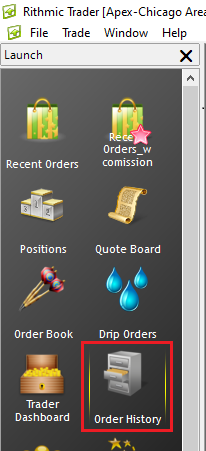
- Open R|Trader and click File in the top left corner
- Select Orders History from the dropdown menu
- Choose your Account and select a Date
⚠️ Rithmic only allows exporting one week at a time
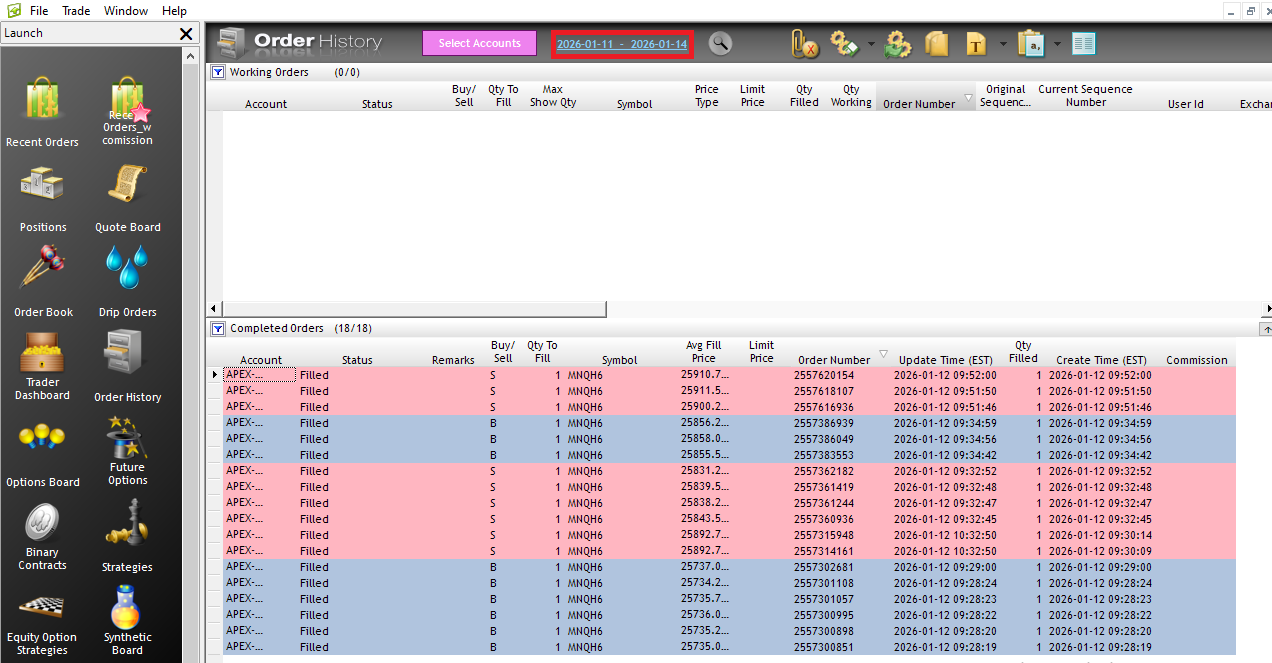
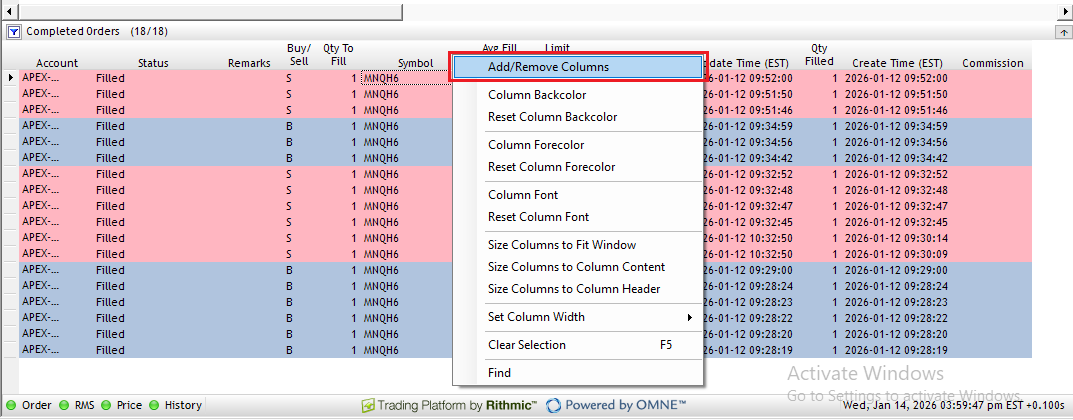
- In the Completed Orders section, right-click on the column headers
-
Click "Add/Remove columns" and ensure these columns are included:
- Account | Status | Remarks | Buy/Sell | Qty To Fill | Symbol | Product | Avg Fill Price | Limit Price | Order Number | Update Time (EST) | Qty Filled | Create Time (EST) | Commission
-
Click OK to confirm
-
After configuring columns, export the data as a CSV file: Export to CSV
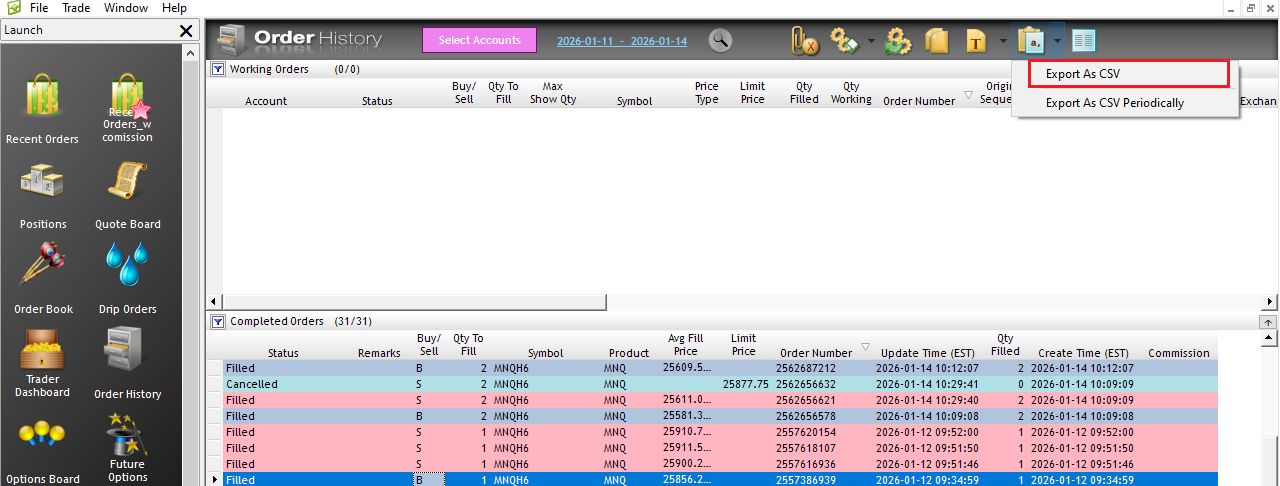
- Save the file to your desktop
Step 2: Import into TradeRonin
If You Don't Have a Rithmic Account Yet
- Go to Settings → Accounts
- Click "+ Add Account"
- Select "Broker"
- Choose Rithmic R|Trader from the broker list
- Select your file and Complete account setup
If You Already Have a Rithmic Account
- Go to Settings → Accounts
- Click on your existing Rithmic account
- Click "Upload"
- Select your exported file
- Review and confirm
What Gets Imported
| Data | Included |
|---|---|
| Filled orders | ✅ Yes |
| Working orders | ❌ Skipped |
| Canceled orders | ❌ Skipped |
| Commission | ✅ Yes (if provided) |
| Futures contracts | ✅ Yes |
| Micro contracts | ✅ Yes |
Supported Futures
TradeRonin auto-detects multipliers for all Rithmic futures:
| Symbol | Product | Multiplier |
|---|---|---|
| MNQ | Micro E-mini NASDAQ | $2 |
| MES | Micro E-mini S&P 500 | $5 |
| NQ | E-mini NASDAQ | $20 |
| ES | E-mini S&P 500 | $50 |
| CL | Crude Oil | $1000 |
| GC | Gold | $100 |
All CME, CBOT, NYMEX, and COMEX products are supported.
Required Columns
TradeRonin automatically detects these columns:
- Buy/Sell — "B" or "S"
- Symbol — Full contract with expiry (e.g.,
MNQH6) - Avg Fill Price — Execution price
- Qty Filled — Filled quantity
- Order Number — Unique order ID
- Update Time (EST) — Fill timestamp
Sample CSV Format
Account,Status,Remarks,Buy/Sell,Qty To Fill,Symbol,Product,Avg Fill Price,Limit Price,Order Number,Update Time (EST),Qty Filled,Create Time (EST),Commission
APEX-148500-11,Filled,,B,1,MNQH6,MNQ,25734.2500,,2557301108,2026-01-12 09:28:24,1,2026-01-12 09:28:24,
APEX-148500-11,Filled,,S,1,MNQH6,MNQ,25831.2500,,2557362182,2026-01-12 09:32:52,1,2026-01-12 09:32:52,
Troubleshooting
"Could not find Completed Orders header row"
- Make sure you export from the Completed Orders section, not Working Orders
- Verify your CSV includes the column headers
"No valid trades found"
- Check that orders have status "Filled"
- Ensure the date range includes trades
"Missing required columns"
Required: Buy/Sell, Symbol, Avg Fill Price, Order Number, Update Time (EST), Qty Filled
Duplicate Trades
Re-uploading the same file won't create duplicates. TradeRonin uses the Order Number for deduplication.
Multiple Days Export
Since Rithmic only allows single-day exports:
- Export each trading day separately
- Upload each CSV file one at a time
- TradeRonin will combine them automatically
Need Help?
Contact support with:
- First few rows of your exported CSV
- The error message you're seeing